How to Brand a Discord Server: Four Places Members See, From the Invite to Every Bot Message
Many teams stop at the logo and banner. This four part kit covers the first channel, every bot and webhook that posts, and the staff list, so the whole server reads as one company.
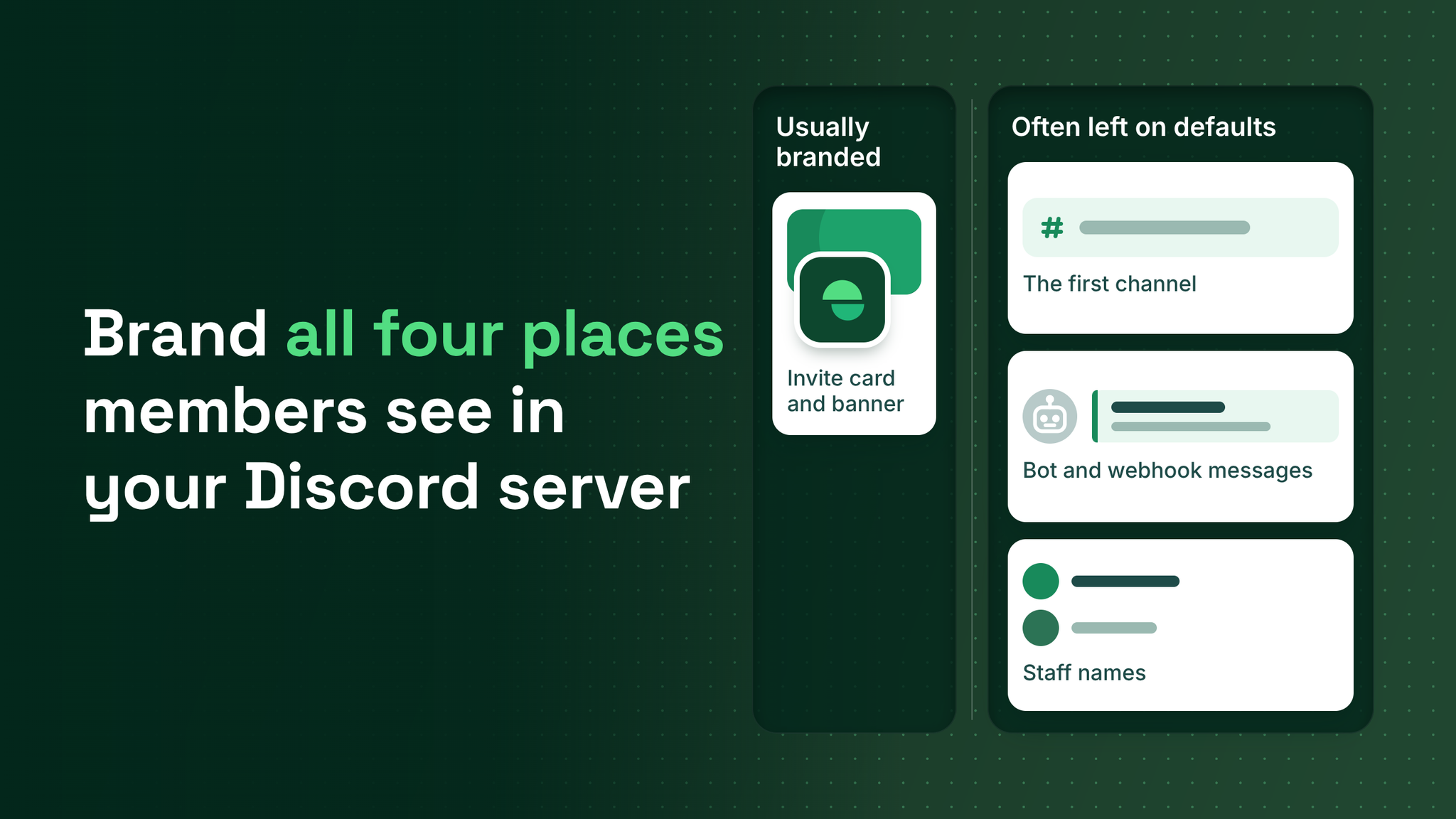
Branding a Discord server means making every place a member looks at read as the same company. There are four of those places. Teams usually finish the first one, the logo and banner, and assume the job is done.
It rarely is. In a lot of servers, most of what a member reads arrives from automated accounts: the welcome, the reply to a support ticket, the announcement, the alert when something ships. If each of those accounts shows a default name, a default picture and a random colour bar, the server has one logo and half a dozen voices. A member notices that before they notice anything about your typography.
The four place kit
Here are the four places, in the order a new member meets each one.
- The front door. The invite card, the server icon and the banner at the top of the channel list.
- The first channel. The welcome panel, which should say what the company makes before it says anything else.
- The automated voices. Every bot and every webhook (a webhook is a link that lets a tool post into a channel under a name and avatar you choose).
- The staff list. How your people appear in chat and in the member list.
Places two, three and four work on every server without paying for anything. Server Boosts, the paid upgrades members or the company can apply to a server, only add extras: the invite background and banner at the front door, and role icons for staff.
The name and picture on the left of a message tell a member who is speaking before they read a word of it.
The front door, and what boosts actually buy
Discord's Help Center page on Server Boosting, updated in 2026, sets out the branding perks by level. Two boosts unlock a custom invite background and an animated server icon. Seven boosts unlock a static server banner and custom role icons. Fourteen boosts unlock an animated banner and a custom invite link.
That list gives a brand lead a clear order of spend. A server with no boosts still has its icon, so the logo carries the front door alone. I recommend finishing the three free places before paying for any boost, because a member sees the invite card once and sees bot messages every day. That ordering is my own recommendation, not Discord guidance.
When the banner and invite background do go up, cut them from the same artwork as the header image in the first channel. Those three images all appear in a member's first minute, and matching them is the cheapest way to make the server feel designed.
The first channel
I have seen this miss in a few servers: a warm welcome that never says what the product is. Fix the words first, then dress them. A branded first channel has a header image from the brand artwork, one embed colour on the left edge of the welcome panel, link buttons to the website, docs and support, and copy written in the same voice as the website. If the site is short and plain, the welcome should be too.
The automated voices
This part has the most work in it and the most payoff. Run it as an inventory followed by three settings per account.
Take the inventory
Open Server Settings, then Integrations, and list every webhook. Then scan the member list for accounts marked as apps or bots. Next to each one, write what it posts. Once it is written down, the count is often higher than anyone expected.
Name each one after the company
Bots are members of the server, which means they can have server nicknames like anyone else. Discord's Help Center page on Server Nicknames, updated in 2025, explains that the Manage Nicknames permission lets a person change other members' nicknames inside that server. An admin can rename every bot in a few minutes without opening any bot dashboard.
Name them by company and job, such as Acme Welcome, Acme Support and Acme Updates. Members can tell the jobs apart and still see one company behind all of them.
Give each one the logo
How you set the picture depends on what kind of account it is:
| Account type | Where the name and avatar come from |
|---|---|
| Webhook | Set a default under Integrations; each post can also override it |
| Your own bot | It can set its own avatar, banner and bio inside one server |
| Someone else's bot | Its dashboard, if it offers a per server profile; the nickname still works if it does not |
Discord's developer documentation (2026) names the webhook fields username and avatar_url, both described as overrides of the webhook's default. For bots, the same documentation lists a Modify Current Member endpoint with avatar, banner and bio fields that apply only inside one server.
Choose one embed colour
Every embed carries a colour bar on its left edge, and in a busy server that bar repeats more often than any other piece of brand colour. Pick one colour and put it on every embed from every account. Dashboards and embed builders take a hex code. Raw JSON takes the same colour as a whole number, which Discord's message documentation (2026) calls the embed's colour code. Convert it once and write both down, for example #3B5BDB and 3890139.
The staff list
Members look for staff when something goes wrong, so staff need to be easy to spot and hard to imitate.
- Give the staff role one colour from the brand palette and keep that colour off every other role.
- Use one nickname pattern for every staff member, such as
First name | Team(Sam | Support). Any pattern works. Consistency is the part that matters. - Add a role icon at Level 2 if you have the boosts, which the Server Boosting page lists at seven.
- Leave personal profile pictures alone so members can still tell staff apart.
A consistent pattern does a security job as well. An impersonator who copies a staff name may not match the format and the colour exactly, and any mismatch is visible at a glance.
Who owns which part
Branding a server usually stalls because it falls between two teams. The brand team owns the look and has no admin access. The community or operations team has the access and no time to chase pixels. Splitting the kit along that line gets it finished.
The brand team supplies
- The square logo file sized for avatars
- The header artwork for the banner, invite background and first channel
- The embed colour as a hex code
- The naming rule for bots and staff
The server admin applies
- Bot nicknames and webhook names
- Avatars on every account that allows one
- The embed colour in each bot dashboard
- Staff role colour and role icons
The brand team then signs off on one set of screenshots, the same four places used in the quarterly check below. Neither side has to learn the other's tools.
Keeping it consistent after launch
The kit breaks when someone adds a new bot in a hurry. The fix is a brand sheet that lives where the team will find it:
The Discord brand sheet (copy and fill in)
DISCORD BRAND SHEET
Square logo for avatars and the server icon: [link]
Header artwork for the first channel and announcements: [link]
Embed colour as hex: [#xxxxxx]
Embed colour as whole number: [number]
Staff role colour: [one colour from the palette]
Bot and webhook names: [Company] [Job]
Staff nicknames: [First name] | [Team]
Before any new bot posts: nickname, avatar, embed colour, one test post in a staff channel
Then audit it on a schedule. Once a quarter is a sensible rhythm: join the server from a fresh account, screenshot the invite card, the first channel, the latest post from every automated account and the staff section of the member list, and line the screenshots up. Anything that looks like a different company gets fixed against the sheet.
How this fits the rest of the server
Branding runs across every other layer of a Discord build: the onboarding sequence from the invite to a member's first useful action, the roles and channels, the support routing, the moderation setup, and the automations that post for the company. Each of those layers puts something in front of a member. The four place kit is how a brand team checks that all of it reads as one company.
Every message in a server arrives with a name and a face beside it, and members decide who they are dealing with from those two things. Make them yours. More at danieljeong.org.
Want a properly managed community?
Get Your Free Analysis →