Discord Invite Landing Page: Five Blocks to Show People Before They Click Join
A five-block page that tells visitors what your company does, who they will meet and what to do first, plus a way to see which link each new member came through.
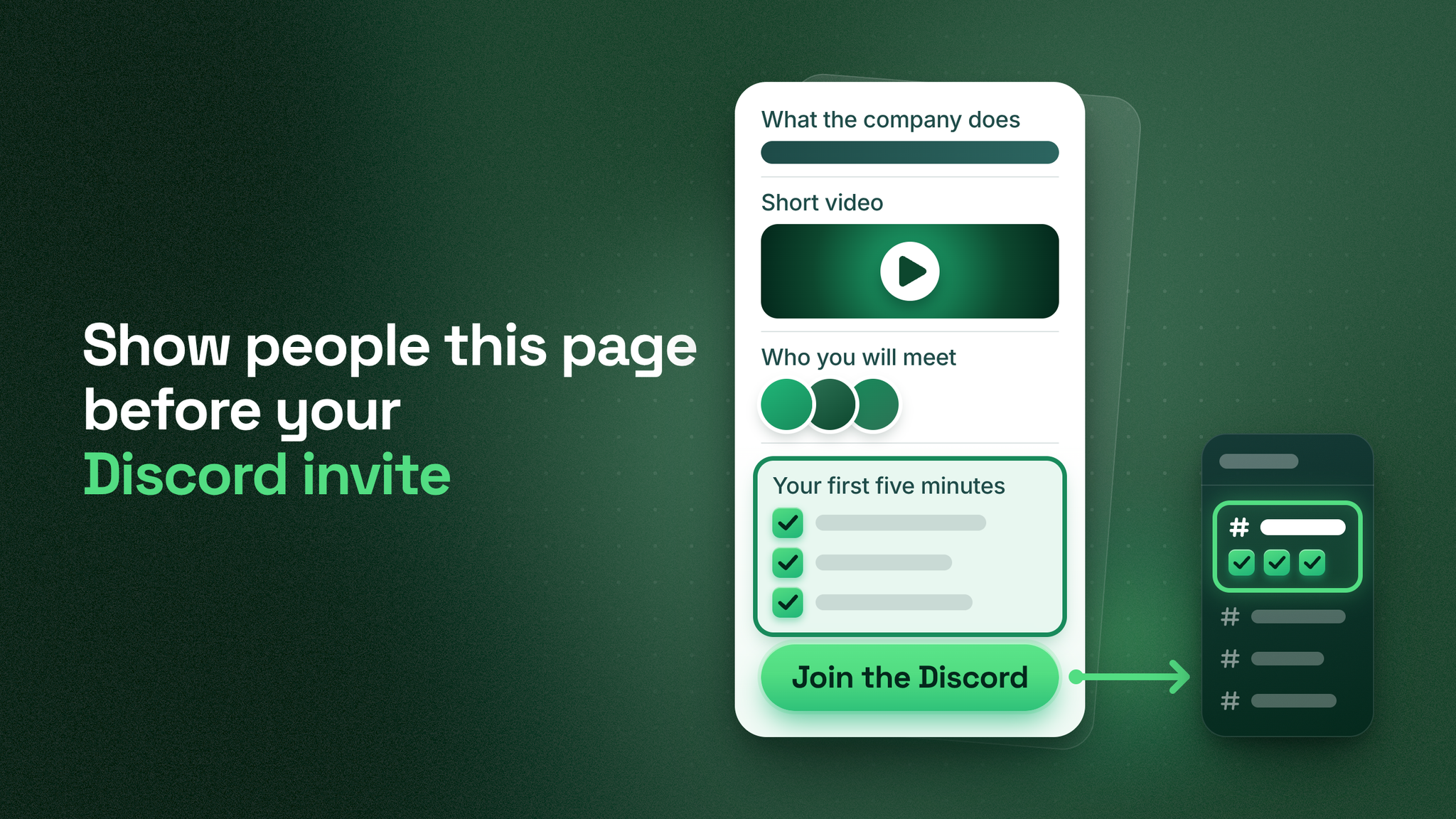
Three questions at the door
A person looking at your Discord invite is silently asking three questions. What is this company? Who is in there? What am I supposed to do first? An invite link answers none of them. A short page placed before the invite answers all three in that order and then hands over a single button.
The layout I use is the five-block pre-join page:
- One sentence on what the company is and who the community is for.
- A short video of the inside of the server.
- Two or three named team members.
- Three first steps, written in the server's own words.
- One button that holds the invite.
Four terms appear throughout:
Server is your company's space on Discord.
Channel is one room inside the server, written with a hash sign, for example #start-here.
Invite link is the web address a person uses to join.
First screen is what a member sees straight after joining, normally the first channel in the list and the post sitting in it.
Measure the page by what people know when they arrive. It has no effect on how many people see your link, and it should not be judged on that.
I served as Head Discord Moderator for Google Developers, and this is the layout I use today.
What happens without the page
The common setup is an invite pasted directly into a social bio, a newsletter footer or a "Join our Discord" button. A click brings the person to the server's door. A second press and they are a member.
At that moment they know almost nothing. Many of them cannot say what the company sells, since the link reached them through somebody else's post. The channel names in front of them were chosen by your team for your team. From here there are two outcomes. They glance around for a few seconds and go, or they stay and type the basics into the main chat.
Members who walk in with those answers are different to deal with. My experience is that their first messages are about their own work, which makes for better conversations from the start, and your team spends far less time explaining.
Blocks one and two: say what this is
The opening sentence. Give the visitor one sentence in two parts: what the product is, then who the community is for. Many visitors do not know the first part, and they can only guess at the second. A greeting such as "Welcome to our community" covers neither. To test your sentence, read it to someone outside the company and ask them to say it back.
The video. Under the sentence, place a short recording of the server as it looks now. I keep mine under two minutes. It should show the channel list, a question getting an answer, and the spot where the first step takes place. How to make that video is outside this piece. What matters for the page is that the server on screen is the server they will enter.
Block three: put people in the room
An empty-looking room is hard to walk into. Show two or three members of your team, each with a face, a first name and one line about what they do in the server.
- Choose people who reply in the server regularly. A senior name who never posts sets up a promise nobody keeps.
- Write the role line about the visitor's benefit, such as "answers setup questions on weekdays".
- Remove a person from the page the same day they leave the team or move to other work.
A visitor who has seen a name and a face before joining is more likely to post a first message, because they are writing to a person they have already seen.
Block four: three steps in the server's words
Head this block "Your first five minutes" and put exactly three steps under it. The wording is not yours to write. Open the server's first channel, copy the three steps that are posted there, and paste them onto the page unchanged.
If the first channel says "Choose your team size", the page says "Choose your team size". It does not say "Pick a role" or "Tell us about yourself".
Include the channel name in every step, so the visitor can spot it in the list by sight. Designing those first five minutes inside the server is a separate job. The page's only duty is to report the three steps exactly.
Block five: a single button
Finish with one button that says where it goes, such as "Join the Discord", and put the invite behind it. Add no second button. A link to the documentation or the newsletter beside it offers a way out to someone who was about to join.
The template below shows the full page for an invented product, a scheduling tool for small teams. Replace the bracketed parts with your own.
BLOCK 1
[Product] is a scheduling tool for small teams, and this Discord is
for the people who build the weekly schedule with it.

BLOCK 2
(video) A look inside before you join (under two minutes)

BLOCK 3
[First name], product support. Answers setup questions on weekdays.
[First name], community lead. Hosts the schedule review sessions.
[First name], product manager. Reads every post in #feature-requests.

BLOCK 4
Your first five minutes
1. Open #start-here and choose your team size.
2. Say hello in #introductions with one line about what you schedule.
3. Ask your first question in #help.

BLOCK 5
[ Join the Discord ]
Opens Discord. Step one is waiting on the first screen.
The page should be readable on a phone in one pass, with no menu, no sidebar and no second page.
Four things that do not belong on the page
| Leave off | What it does to the page | What to do with it |
|---|---|---|
| Member-count boasts | Says the room is crowded and nothing about what the visitor gets. Goes out of date quickly | Drop it. Block 1 already says who the community is for |
| A wall of rules | Pushes the button down and reads as a warning to someone who has done nothing yet | Keep the community guidelines inside the server |
| Several competing buttons | Gives the visitor more ways to leave than to join | Keep those links on the pages they already live on |
| A feed of chat | Shows messages without context, at a moment you did not choose | Let the short video show a moment you did choose |
Check the promise from the outside
Block four is a promise about what the visitor will find. Check it by going through the door yourself, once, the way they will.
✅ Copy the three steps from the page into a note.
✅ Join through the page's button using a fresh account, meaning one that has never been in the server and has no staff role.
✅ Look only at the first screen. Do not scroll and do not open another channel.
✅ Confirm the same three steps are there, in the same order.
✅ Confirm the wording is identical, including channel names.
Every box has to be ticked for a pass. The failures repeat: the page and the server use different words for the same step, a channel was renamed after the page was written, the steps sit below a run of announcements, or the server lists five steps where the page lists three. Each fix is the same idea. Choose one wording and one count, and put them in both places.
A page whose promise fails on the first screen does more harm than having no page, since the visitor arrives expecting something specific and does not find it.
Repeat the check whenever the page or the first channel is edited.
See which source each member came from
One button can still tell you where people came from, provided each source uses a different invite.
An invite code that appears in one place only acts as a label for that place. Three rules make it work.
One invite belongs to the page alone. Do not reuse it in a post or an email. Any member on that code came through the page.
Each source gets its own copy of the page. The five blocks and the words stay identical. Only the invite behind the button differs: one for the social bio, one for the email footer, one for the product. A web team can also do this with a single page that changes the button's link from a tag in the address.
Each link's expiry is checked when it is created. A link made in the app lasts 7 days by default and can also be limited to a number of uses, according to Discord's help center (2023). A page will be live far longer than that. Change the expiry before copying the link, and do not set a use limit.
A readable custom link carrying the server's name needs Server Boost Level 3, one of Discord's perk tiers for servers, as Discord's help center (2025) explains. It is not required here. The visitor presses a button and never sees the code, and ordinary codes are the ones that separate your sources.
Record each link in a ledger with five columns: Source, Page address, Invite code, Expiry checked and Owner. One row per copy of the page is enough.
The three figures worth tracking
| Figure | Where to read it | What a low figure points to |
|---|---|---|
| Page visits | Your web analytics, per copy of the page | Few people are reaching that copy from its source |
| Joins through that copy's invite | The Members page, filtered by join method, counting members on that code | The page is not answering the three questions, or the link has expired |
| Members who finished step one | The roles and message count on those same rows | The page and the first screen disagree. Run the check above |
All three come from tools you already hold. Compare one source with another, since each server asks for a different first step and outside benchmarks tell you little.
Keeping the page true
The page is correct on the day it is published and drifts from then on. Give one named person the job of keeping it matched to the server, and add their name to the ledger.
RE-READ THE PAGE WHEN

- a channel named in the three steps is renamed, moved or removed
- the first step changes
- a person in block 3 leaves the team or changes role
- the video shows channels that no longer exist
- an invite is replaced or deleted

AFTER ANY OF THESE
Update the page, then run the fresh-account check again.
Ownership is where this usually breaks. Marketing looks after the page, the community team looks after the first channel, and each edits without the other knowing. The owner's task is to hear about every change before it goes live and to repeat the check afterwards, whoever does the writing.
How the page fits into onboarding
The pre-join page handles the step before entry. That step belongs to onboarding and the first 48 hours, together with what the first channel shows, the first action a member takes and the first contact they have with a person from your team. Support routing and reporting are separate layers next to it.
Everything needed to build the page is above: five blocks, one invite per source, a fresh account for the check and one owner. Because the page repeats what the server says, the server's three steps have to be settled first.
Tell people what they are walking into, and make sure the first screen agrees with what you told them. More at danieljeong.org.
Want a properly managed community?
Get Your Free Analysis →